
Hotkey Setup Guide
AI Transcription Notepad uses global hotkeys (F15-F19) that work system-wide, even when the app is minimized. Most standard keyboards don't have F15+ keys, but you can easily remap any key or button to emit these keycodes.
!!! tip "Recommended Tool: Input Remapper" We highly recommend Input Remapper for setting up hotkeys on Linux. It's a powerful, open-source tool that works with any input device including foot pedals, macro keypads, and extra mouse buttons.
Download PDF Guide - Visual step-by-step walkthrough
This guide shows two approaches:
- Remap to Pause key - Use an existing keyboard key that AI Transcription Notepad can detect
- Remap to F15 - Use the extended function keys for dedicated voice control
Why F15-F19?
These extended function keys are ideal because:
- They don't conflict with other applications
- They're not used by any desktop environment shortcuts
- They work reliably across Linux, including Wayland
Using Input Remapper
Input Remapper is a Linux tool for remapping keys and buttons from any input device.
Installation
Ubuntu/Debian:
sudo apt install input-remapperFedora:
sudo dnf install input-remapperArch:
sudo pacman -S input-remapper-gitStep 1: Select Your Device
Open Input Remapper and select the device you want to remap. This could be:
- A USB foot pedal
- A macro keypad
- Extra mouse buttons
- Any HID device
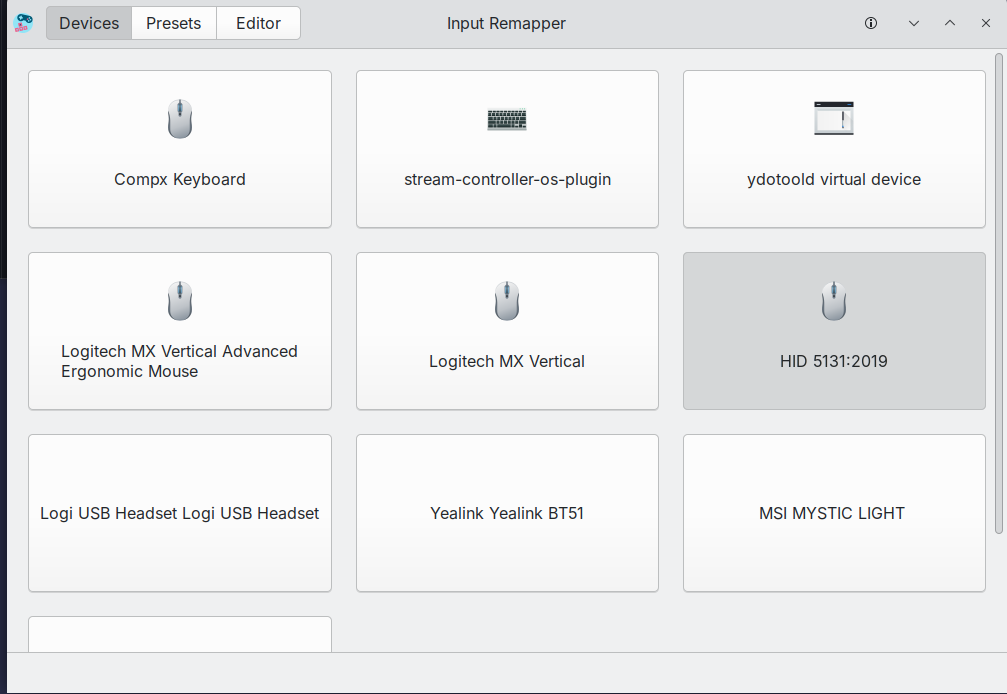
Step 2: Select the Specific Device
Some devices appear multiple times (keyboard interface, mouse interface, etc.). Select the one that matches your input type.
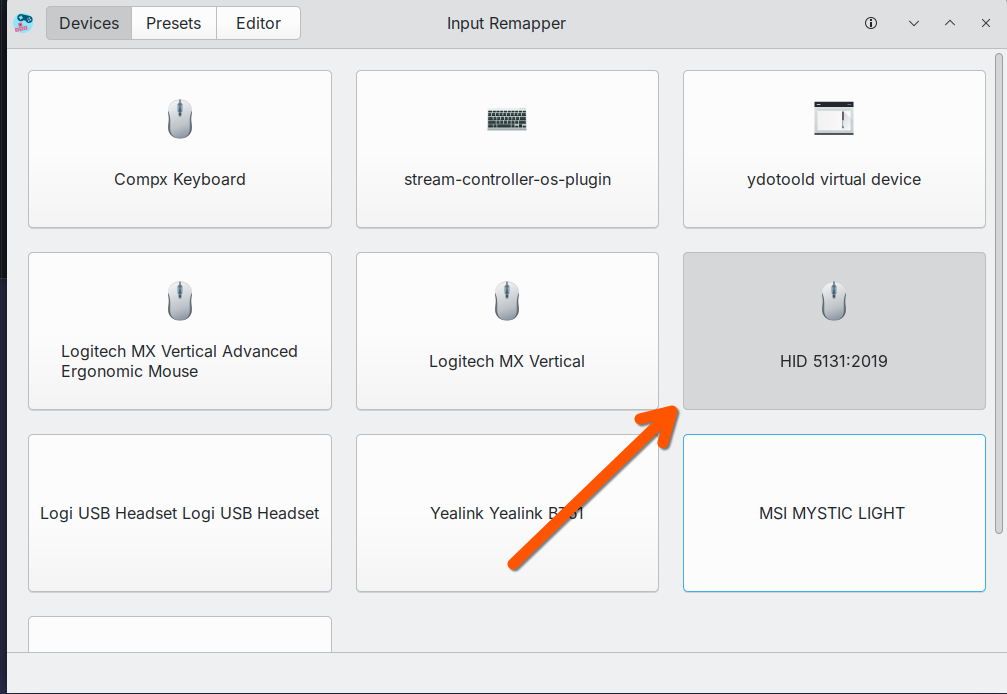
Step 3: Open the Editor
Switch to the Editor tab to create key mappings.
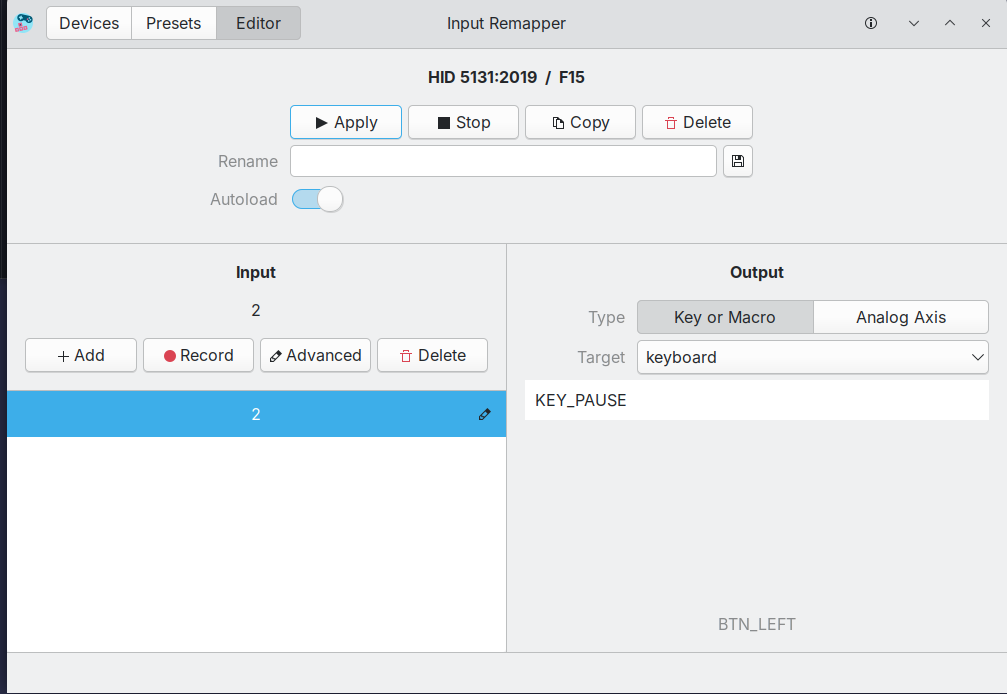
Step 4: Record the Input
Click Record and press the button you want to remap. Input Remapper will capture it.
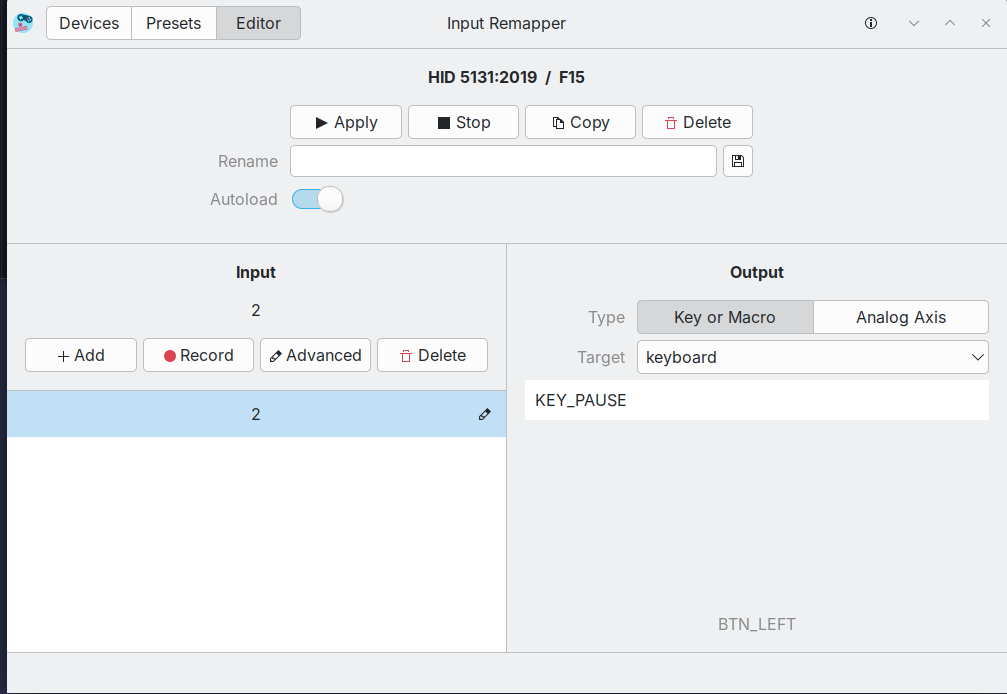
Step 5: Choose the Output Key
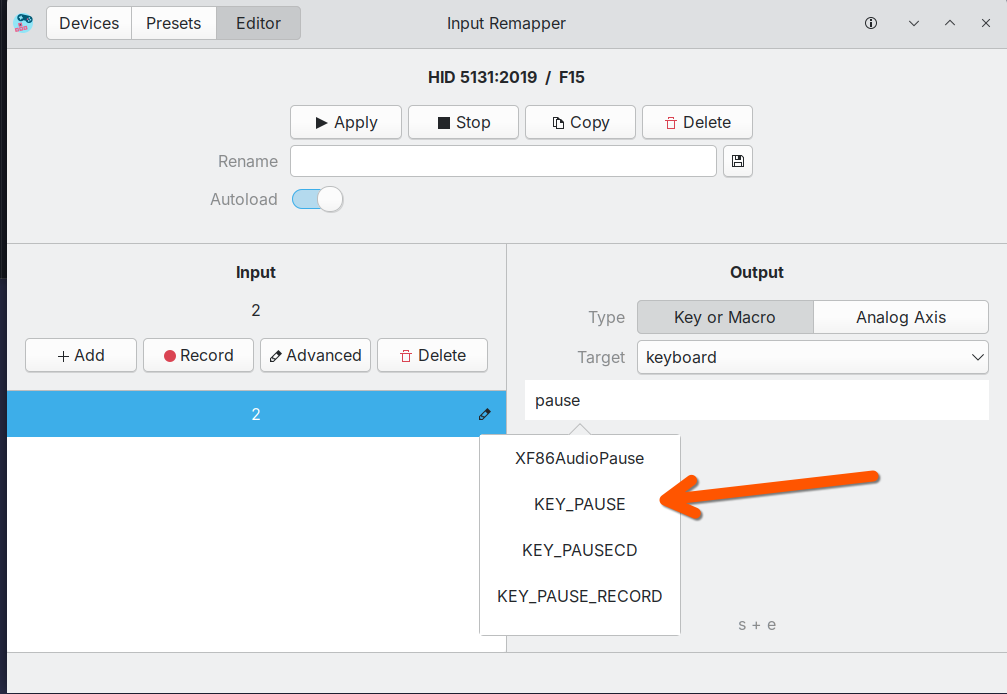
Type the key name in the output field. Input Remapper provides autocomplete suggestions.
Option A: Use KEY_PAUSE
Search for "pause" and select KEY_PAUSE. This maps your button to the standard Pause/Break key.
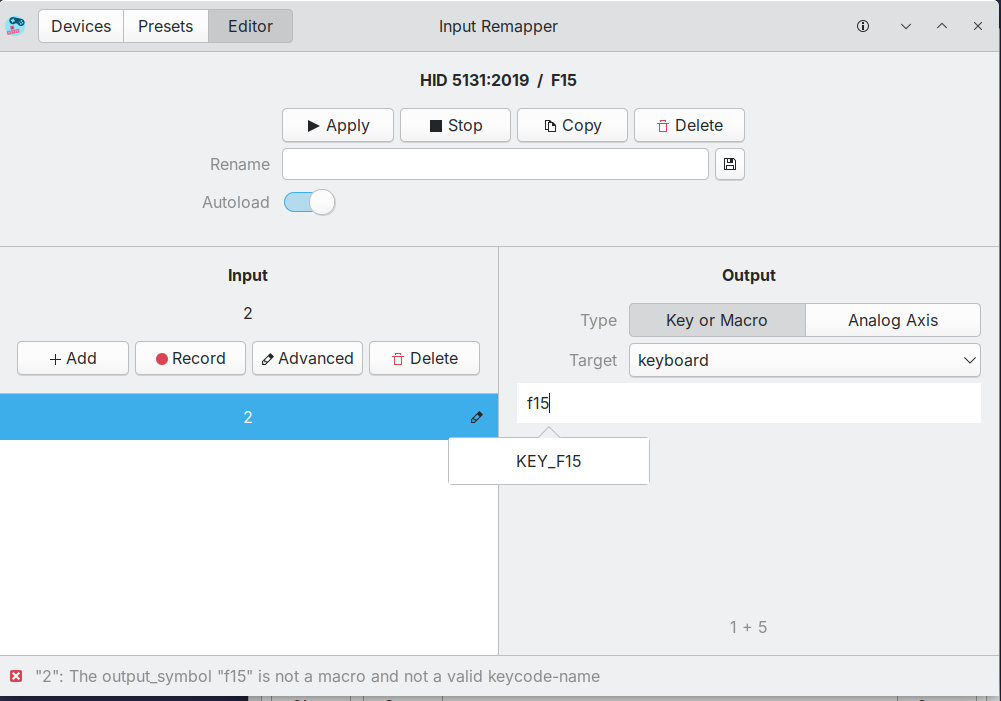
Option B: Use KEY_F15
Search for "f15" and select KEY_F15. This gives you a dedicated key that won't conflict with anything.
Step 6: Apply and Enable Autoload
- Click Apply to activate the mapping
- Enable Autoload to make it persist across reboots
Recommended Mappings
If you have multiple buttons available (like a foot pedal with 3 buttons), consider this setup:
| Button | Maps To | AI Transcription Notepad Action |
|---|---|---|
| Button 1 | KEY_F15 | Toggle Recording |
| Button 2 | KEY_F17 | Transcribe |
| Button 3 | KEY_F18 | Clear/Delete |
Alternative: Standard Keyboard Keys
If you prefer using standard keyboard keys, you can also use:
- Pause/Break - Usually available and rarely used
- Scroll Lock - Another rarely-used key
- Insert - If you don't use it for pasting
Configure these in AI Transcription Notepad's Settings > Hotkeys tab. Each function can be assigned any key from F13-F24, or disabled entirely.
Troubleshooting
Input Remapper doesn't see my device:
- Make sure the device is connected before opening Input Remapper
- Try running
sudo input-remapper-gtkfor permission issues - Check if udev rules are needed for your device
Keys don't work in AI Transcription Notepad:
- Verify the mapping is active (green indicator in Input Remapper)
- Test with
xevorwevto confirm the key is being emitted - On Wayland, ensure XWayland compatibility is working
Autoload not working:
- Enable the Input Remapper service:
systemctl --user enable input-remapper - Make sure the preset is saved with Autoload enabled